


 Cortex
 Unit 42 Cloud Security Assessment
 Unit 42 Incident Response


Executive Summary
Passwordless authentication is often presented as the end of account takeover. But to understand the real threat landscape, we need to examine how passwordless is actually deployed in the real world. Attackers do not break protocols in theory. They target the most common implementations, the places where usability, scale and architecture intersect.
Focusing on one of those common implementations, we examine Google Cloud Authenticator. This discussion explores the hidden mechanisms behind synced passkeys and their implementation within the Google ecosystem. Our aim is to help defenders better understand the technology, to lay the groundwork to show how new attack vectors could emerge in a passwordless environment.
This post is Part 2 in our series examining passkey adoption from a security perspective. If you haven’t read Part 1 yet, we recommend starting here: The Art of the Invisible Key – Passkey Global Breakthrough.
Palo Alto Networks customers are better protected from threats that take advantage of issues with cloud authentication through the following products and services:
If you think you might have been compromised or have an urgent matter, contact the Unit 42 Incident Response team.
| Related Unit 42 Topics | Google, Chrome, Cloud |
Background on Passkey Authentication
When we set out to evaluate the security of passkeys, we deliberately thought like attackers. Instead of asking whether Fast IDentity Online (FIDO) is secure, we asked where passkeys live, how they move, how they sync and which components handle the most sensitive operations. That shift in perspective revealed a surprisingly broad and largely unexplored attack surface. Many of the findings we uncovered have not been publicly discussed, and we will reveal them throughout this series.
However, before diving into new attack vectors, we need to establish a clear architectural foundation. The FIDO and W3C specifications define the authentication protocols in detail, but the real protection of key material often extends beyond those documents. In practice, critical implementation details are embedded in browsers, operating systems and cloud services, and are rarely described publicly.
We therefore began with one of the most widely adopted passwordless ecosystems: Google’s passkey authentication.
In this article, we examine the architecture behind synced passkeys for desktop users and explore the lesser known Google Cloud Authenticator, a cloud-based component that performs sensitive cryptographic operations. Once we understand how this system is built, we can analyze the new attack vectors it introduces and discuss how to mitigate them in the next part of this series.
Disclaimer: This analysis reflects our understanding of a complex, evolving system, based on client code, runtime behavior, network traces and public sources. The research detailed here was conducted for responsible, ethical security analysis. To keep the discussion readable, we simplify certain internal flows and use illustrative pseudocode. Although the Google Cloud Authenticator is used by Chrome across platforms, our focus here is Chrome on Windows with Trusted Platform Module (TPM) support.
Meet the Invisible Authenticator
Whenever users authenticate with passkeys backed by Google Password Manager (GPM) across desktop platforms (macOS, Windows, Linux and ChromeOS), we see a connection to the domain enclave.ua5v[.]com.
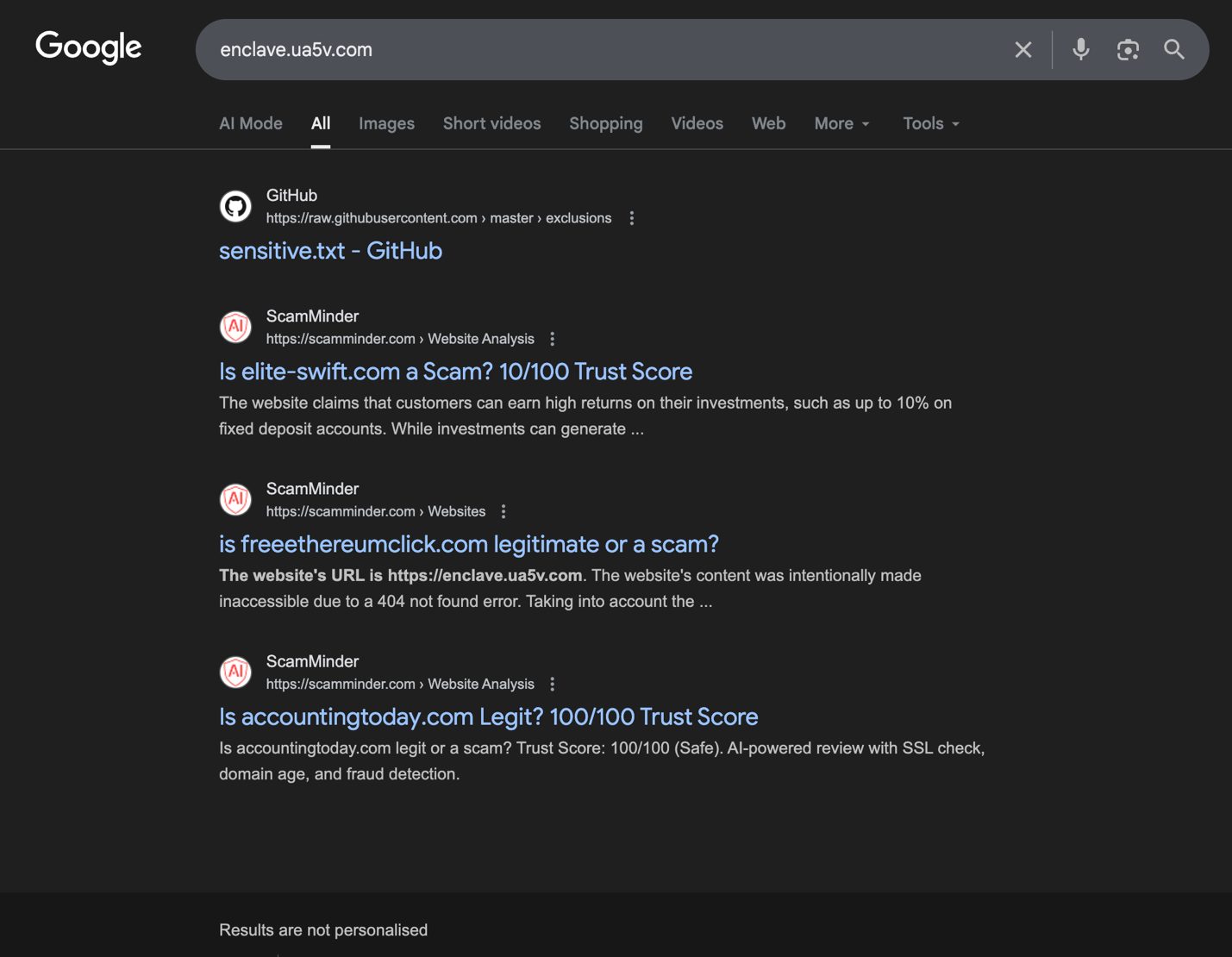
As of January 2026, searching for enclave.ua5v[.]com yields surprisingly little public information about its role in passkey authentication (as shown in Figure 1). This is despite powering logins worldwide.
The FIDO specifications do not explicitly define a cloud-based authenticator. However, related building-block elements exist in Client-to-Authenticator Protocol (CTAP) Hybrid transports, where Bluetooth Low Energy (BLE) physical proximity can be used to establish a tunnel service to Google’s caBLE.ua5v[.]com domain.
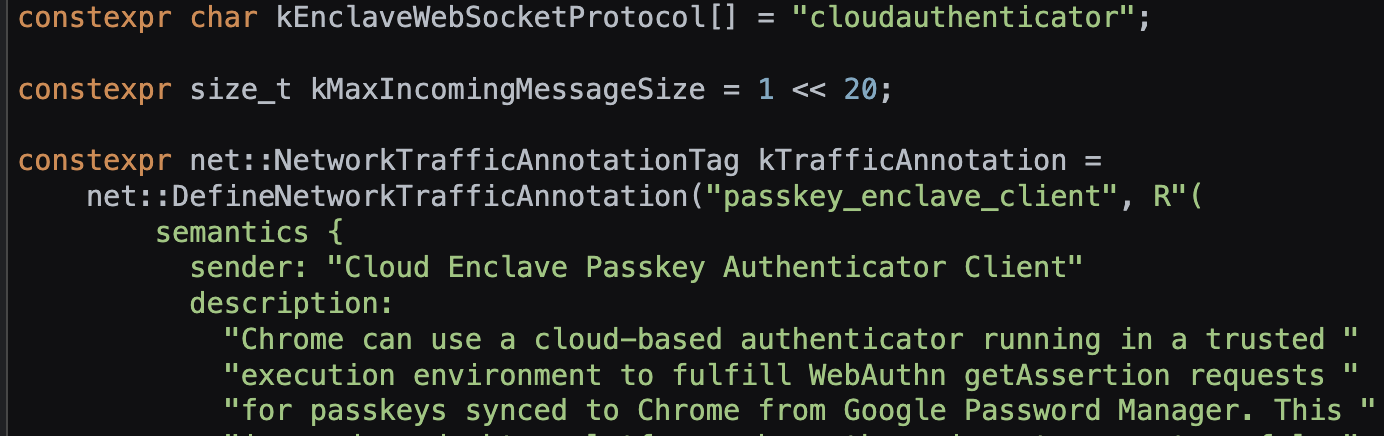
While Chrome still leverages portions of the Hybrid (caBLE) transport code, understanding the actual implementation requires examining Chrome’s behavior and the cloud authenticator, as observed through its network interface and Chromium source code (as shown in Figure 2).
Onboarding Device
A Chrome user can perform passkey operations synchronized with their Google account, making passkeys available across all connected devices. Before any passkey can be used, Chrome runs a dedicated onboarding flow behind the scenes (shown in Figure 3). This allows the remote Google Cloud Authenticator to verify both the device’s identity and the user’s possession of it.
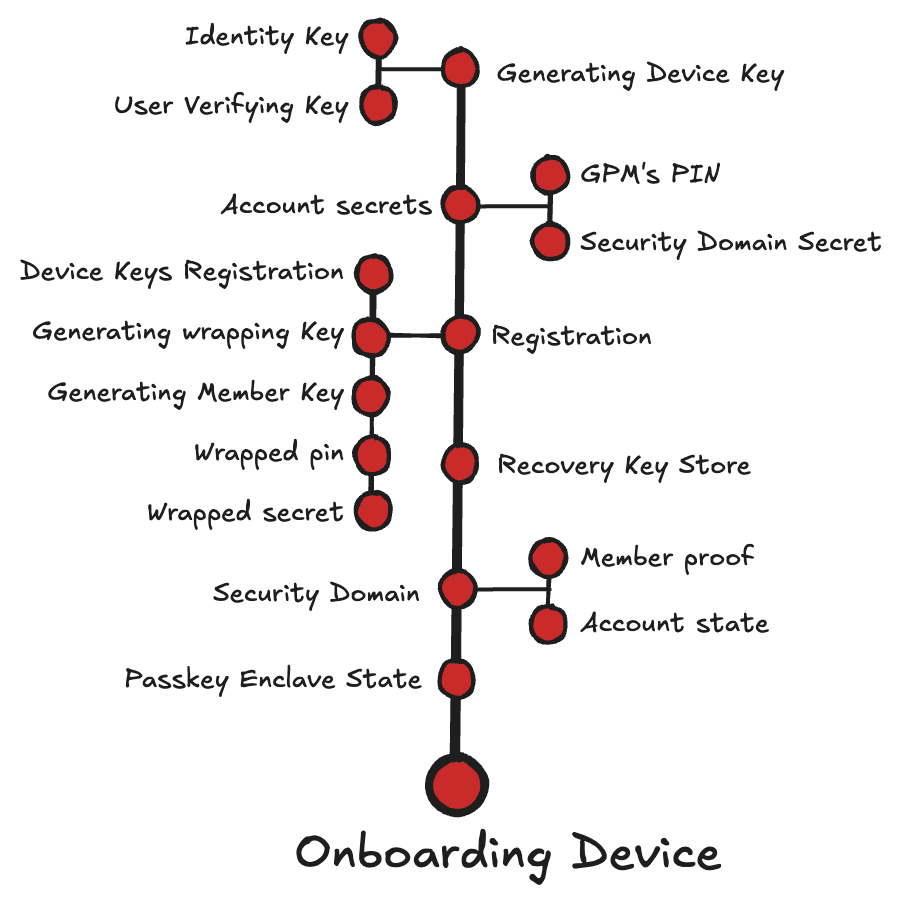
To establish trust between the device and the cloud authenticator, Chrome assigns two TPM-backed key pairs:
- Identity key: Represents “something you have.” In WebAuthn terms: “Register a particular client device as a ‘trusted device’, so the client device itself acts as a something-you-have authentication factor for future authentication.”
- User verification key (UV key): Represents “something you know or are.” This key can only be created or used after the user authenticates (verifies) with the same method they use to unlock the device (biometric or PIN).
After generating the device keys, the client sends a registration request to the cloud authenticator. The message includes:
- Commands: "device/register", "keys/genpair"
- Identity_public_key: Public key corresponding to the TPM-protected identity key.
- UV_public_key: Public key corresponding to the TPM-protected UV key.
- Device_id: SHA256 hash of the identity public key (SPKI).
The cloud authenticator creates a new record and stores the device’s hardware-backed public keys associated with the device ID:
devices[device_id] = {
hw: identity_public_key,
uv: uv_public_key
}
In addition, the cloud authenticator generates and stores a device-specific wrapping key. This key is used to encrypt secrets, allowing them to be stored on the device as opaque blobs and unwrapped only by the cloud authenticator:
wrapping_keys[device_id] = random(32)
Finally, the cloud authenticator generates a member key pair. The private member key is encrypted with the wrapping key. This key is then returned along with the public member key intended for joining the device as a trusted member within the account’s security domain of authorized devices:
(member_private_key, a member_public_key) = Generate P-256 key pair
wrapped_member_private_key = encrypt(member_private_key, key:wrapping_key)
First Device
On the first device, the onboarding process also includes generating the account secrets:
- Security domain secret (SDS): A symmetric master key used by the cloud authenticator to encrypt and decrypt all synced passkeys for the account
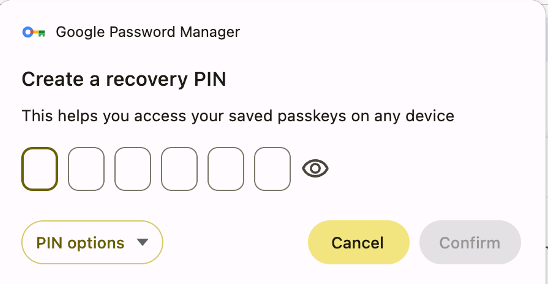
- GPM PIN Code: A user-chosen secret that allows newly added devices to access the account’s synced passkeys
Figure 4 shows the start of the recovery PIN process.
- Establishing a security domain backed by Google’s Trusted Vault service, linking the user’s authorized devices and managing the encryption keys used by Chrome Sync to securely synchronize passkeys
- Creating a PIN-protected recovery mechanism to store and recover the SDS securely
Joined Device
During the first passkey operation on a new device or on a recovered account, Chrome prompts the user to verify with the same GPM PIN. The PIN is verified by the cloud authenticator and protected recovery mechanism. This allows the device to join the account’s security domain, synchronize account passkeys and enable the cloud authenticator to wrap the SDS for that device.
Passkey Enclave State
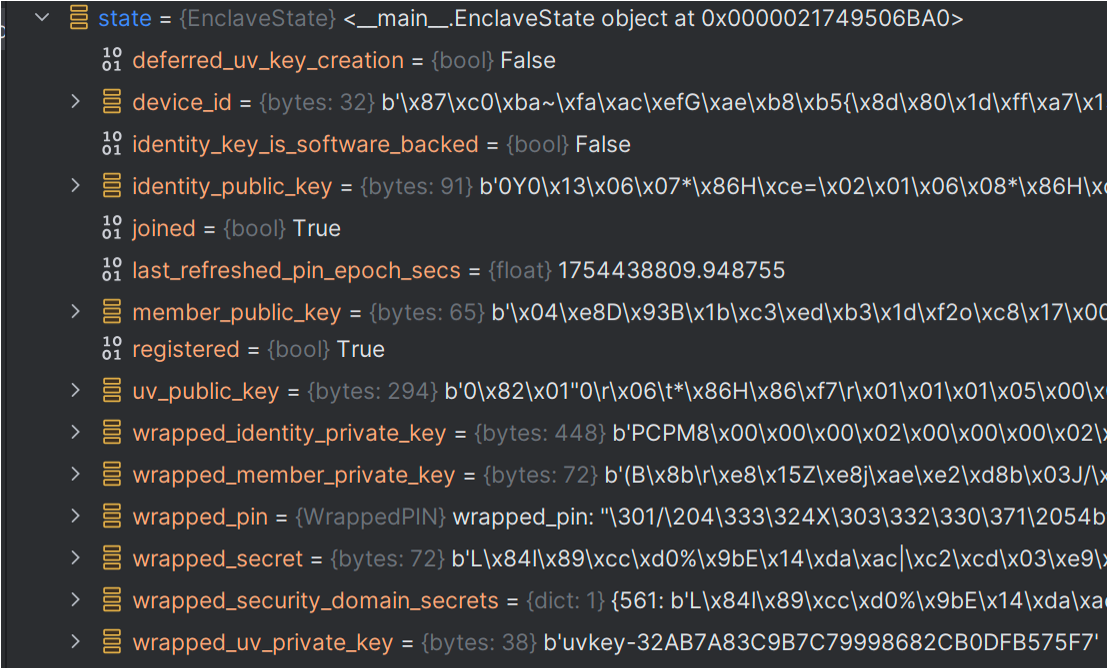
To summarize the device onboarding process, we can review the various key materials generated during the onboarding and stored in a file under the user’s profile directory:
%LocalAppData%\Google\Chrome\User Data\<Profile>\passkey_enclave_state.
The local file enables future device-cloud communication without re-registration or re-entering the PIN and includes the following elements:
- Device keys:
- Identity key:
- wrapped_identity_private_key: When Chrome creates the identity key, it asks the TPM to seal the private portion with the TPM’s hard-coded key. This allows the key to be saved as an opaque blob that only that specific TPM can unseal.
- identity_public_key: The corresponding public portion.
- device_id: The hash of the identity public key that is used as a unique identifier for the device within the cloud authenticator
- UV key
- wrapped_uv_private_key: The label of the hardware-backed key that is gated by local (Windows Hello) user verification
- uv_public_key: The corresponding public portion
- Identity key:
- wrapped_secret: The SDS encrypted with the cloud authenticator’s wrapping key
- wrapped_pin: PIN data encrypted under the cloud authenticator’s wrapping key, enabling the authenticator to verify the PIN, enforce retry limits and perform secure PIN updates without ever exposing the plaintext PIN
Figure 5 shows the extracted passkey_enclave_state file.
Synced Passkey in Action
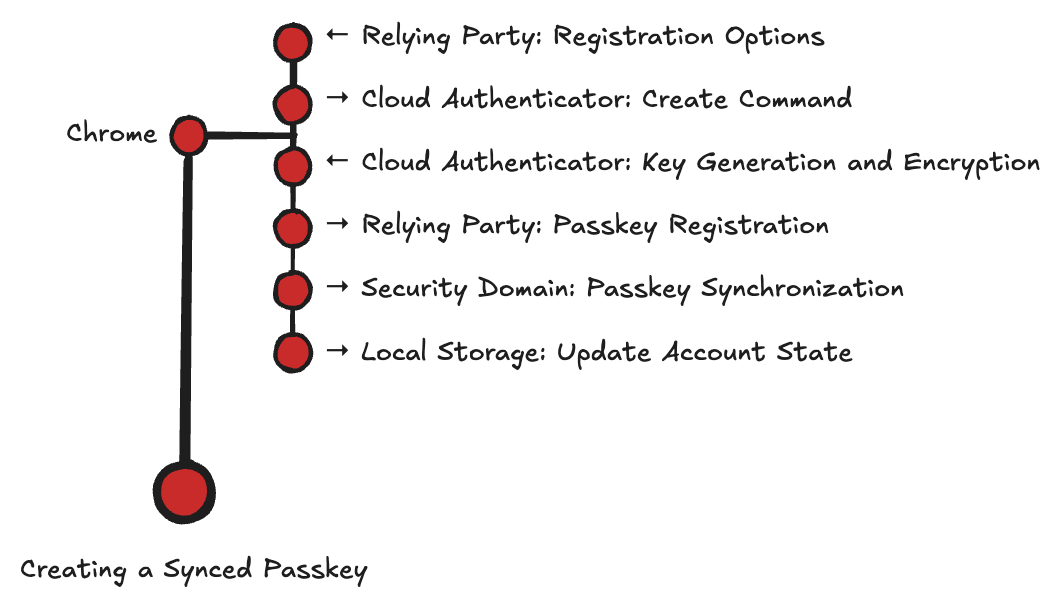
After the device onboarding — which involves completing enrollment with the cloud and joining the security domain — the device's user can start creating and using passkeys that are securely synchronized with their Google account. Figure 6 shows the flow for this process.
Creating a Synced Passkey
When a user chooses to add a passkey as an authentication method to a service, the relying party (service) invokes a create WebAuthn API:
- navigator.credentials.create(options)
Chrome then displays a prompt offering to save the passkey in GPM as shown in Figure 7.
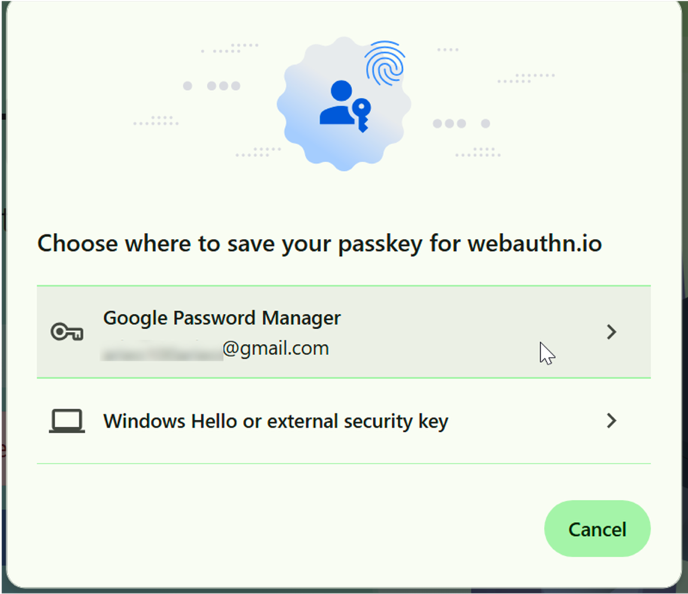
Once the user selects the GPM option, Chrome prepares the required data and initiates a secure, peer-to-peer (P2P) encrypted session with the cloud authenticator.
Create Command (Chrome to Cloud Authenticator)
Chrome sends a request containing the following parameters:
- command: "passkeys/create"
- device_id
- wrapped_secret
Key Generation and Encryption (Cloud Authenticator to Chrome)
The cloud authenticator performs the following operations:
- Uses the provided device_id to locate the corresponding stored wrapping_key.
- Unwraps the wrapped_secret to recover the SDS.
- Generates a new P-256 ECDSA key pair for the passkey.
- Encrypts the passkey’s private key using the SDS.
- Returns the public key and the encrypted private key to the Chrome client.
wrapping_key = wrapping_keys[device_id]
security_domain_secret = decrypt(wrapped_secret, key: wrapping_key)
(passkey_private_key, passkey_public_key) = Generate P-256 key pair
encrypted_private_key = encrypt(passkey_private_key, key:security_domain_secret)
Return to the device (passkey_public_key, encrypted_private_key)
Passkey Registration (Chrome to Relying Party)
Chrome forwards the passkey public key to the relying party as part of the WebAuthn registration response. The website stores this public key under the user’s account for future authentication.
Passkey Synchronization (Chrome to Security Domain)
Next, Chrome prepares a protobuf-encoded sync entity named WebauthnCredentialSpecifics. This record represents the cloud authenticator’s encrypted view of the new credential, enabling any device enrolled in the same security domain to access and use it for authentication. Each WebauthnCredentialSpecifics entry includes:
- RP ID (relying party’s domain)
- Username
- Passkey public key
- Passkey encrypted private key
Chrome uploads this sync entity to the Security Domain service, which distributes the update to the other registered devices.
Update Account State (Chrome to Local Storage)
Whenever a new passkey is added to the account, each enrolled device stores the corresponding WebauthnCredentialSpecifics locally in Chrome’s sync database:
%LocalAppData%\Google\Chrome\User Data\<Profile>\Sync Data\LevelDB.
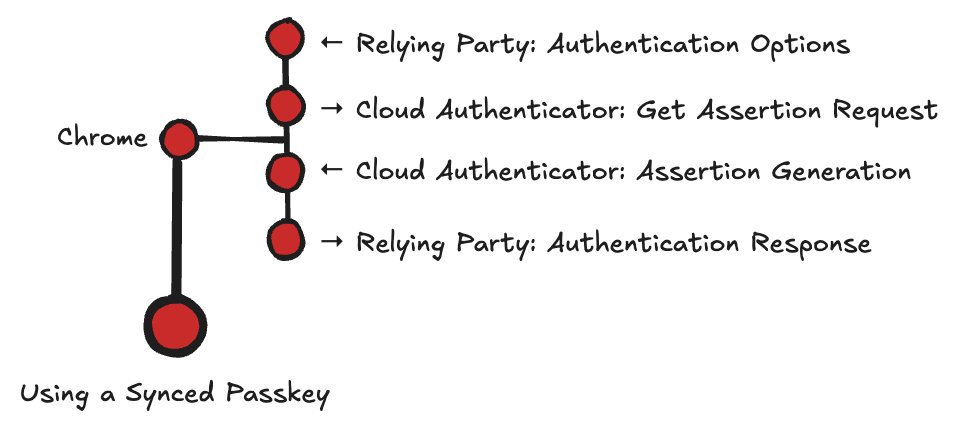
The stored record allows GPM to list the accounts' passkeys and make them available for authentication. Figure 8 shows the authentication flow.
Log in With Synced Passkey
Once a passkey has been created and synchronized, a user can initiate login to a relying party using the synced passkey from any enrolled device. The relying party then invokes a get WebAuthn API: navigator.credentials.get(options). Chrome locates the WebauthnCredentialSpecifics entity that matches the visited relying party ID and establishes a secure connection to the cloud authenticator.
Assertion Request (Chrome to Cloud Authenticator)
Chrome sends a request containing:
- Command: "passkeys/assert"
- client_data_json (challenge and rpID from WebAuthn request)
- device_id
- wrapped_secret
- WebauthnCredentialSpecifics
Assertion Response (Cloud Authenticator to Chrome)
The cloud authenticator performs the following operations:
- Uses the provided device_id to locate the corresponding wrapping_key
- Unwraps the wrapped_secret to recover the SDS
- Decrypts the passkey’s encrypted_private_key with the SDS
- Sets the authenticator flags, including the user-verified flag, based on whether the client’s message is signed with the user verification key (see the secure communication protocol in the Secure Communication Protocol section)
- Constructs authenticator_data, which includes: relying party ID (hash), flags and signature counter (always zero)
- Using the passkey_private_key, signs the concatenation of the client_data_json and the authenticator_data
- Returns to the client AuthenticatorAssertionResponse containing the client_data_json, authenticator_data and the signature
wrapping_key = wrapping_keys[device_id]
security_domain_secret = decrypt(wrapped_secret, key: wrapping_key)
passkey_private_key = decrypt(WebAuthnCredentialSpecifics.encrypted_private_key, key:security_domain_secret)
flags = {
flag_user_present = 1,
flag_user_present = 1 if user-verified else 0,
flag_backup_eligible = 1,
flag_backed_up_state = 1,
}
signature_counter = 0
rpId_hash = SHA_256(rpId)
authenticator_data = {rpId_hash, flags, signature_counter}
signed_data = authenticator_data + client_data_json
assertion_signature = sign(signed_data, key:passkey_private_key)
return to the client: AuthenticatorAssertionResponse {
clientDataJSON: client_data_json,
authenticatorData: authenticator_data
signature: assertion_signature,
userHandle: WebauthnCredentialSpecifics.credential_id
}
Authentication Response (Chrome to Relying Party)
Chrome forwards the AuthenticatorAssertionResponse to the relying party, which verifies the signature using the previously registered passkey_public_key and authenticates the user.
Secure Communication Protocol
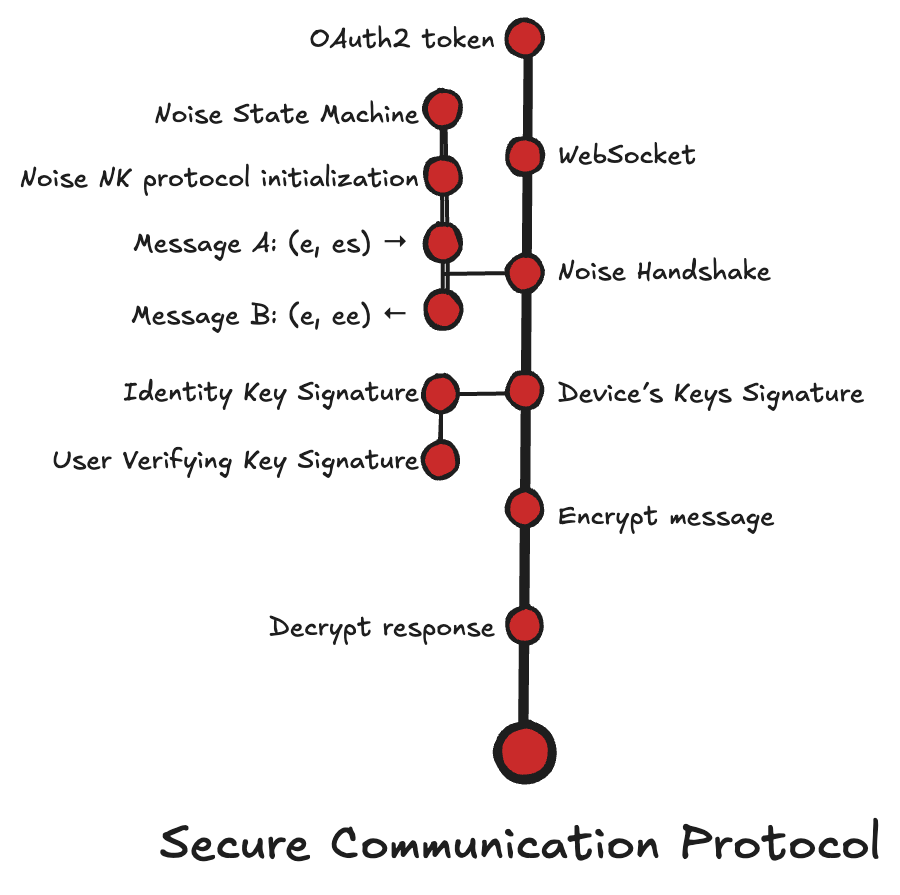
All requests sent to the cloud authenticator, including device management, key handling, recovery operations and passkey creation or use, are protected by a secure communication protocol. For example, once a WebAuthn API is issued and the user selects GPM as the passkey provider, Chrome initiates secure communication with the cloud authenticator as shown in Figure 9.
Get OAuth2 Token
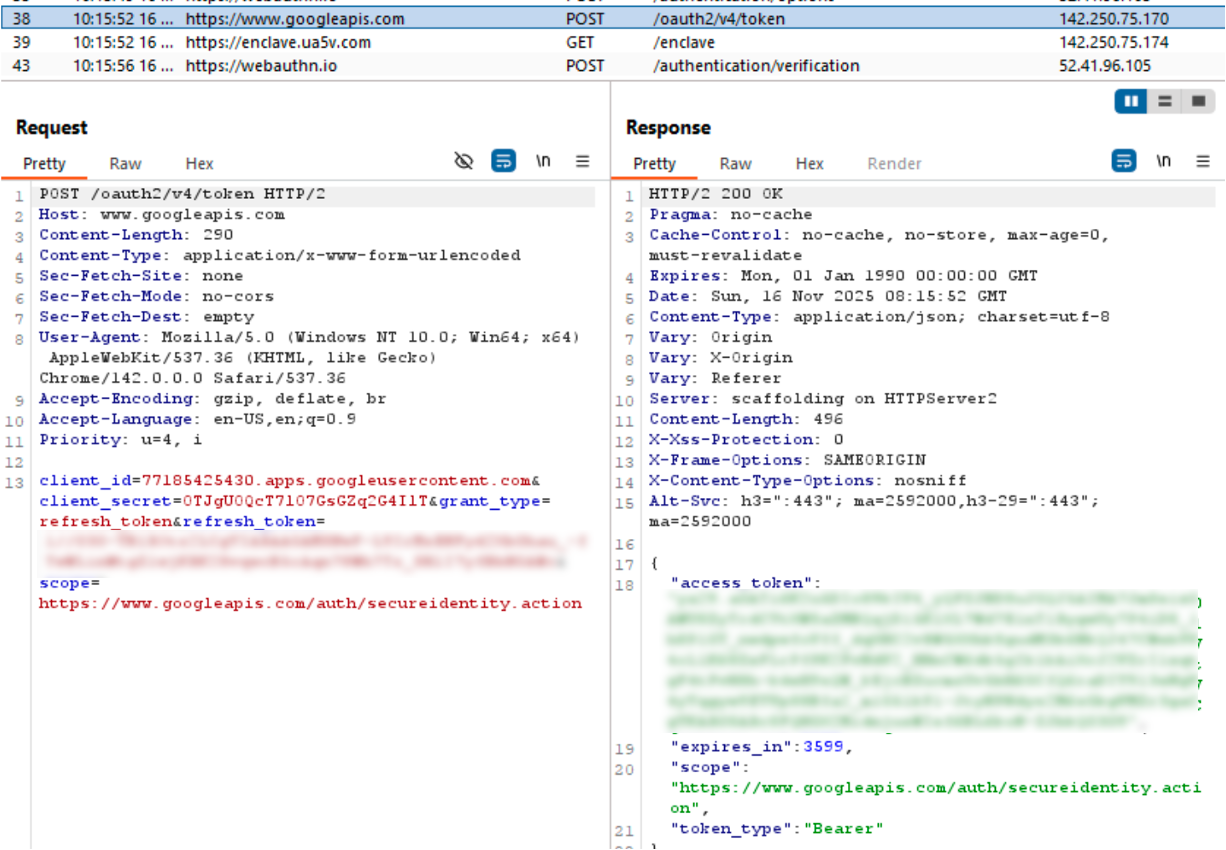
Chrome uses a Google OAuth2 access token as the primary authorization signal for cloud authenticator operations. This token is issued for the Google account that is currently signed in. The token includes a dedicated scope: hxxps[:]//www.googleapis[.]com/auth/secureidentity.action.
To obtain the token, Chrome exchanges a locally stored refresh token for a short-lived access token using Google’s OAuth2, as shown in Figure 10.
WebSocket
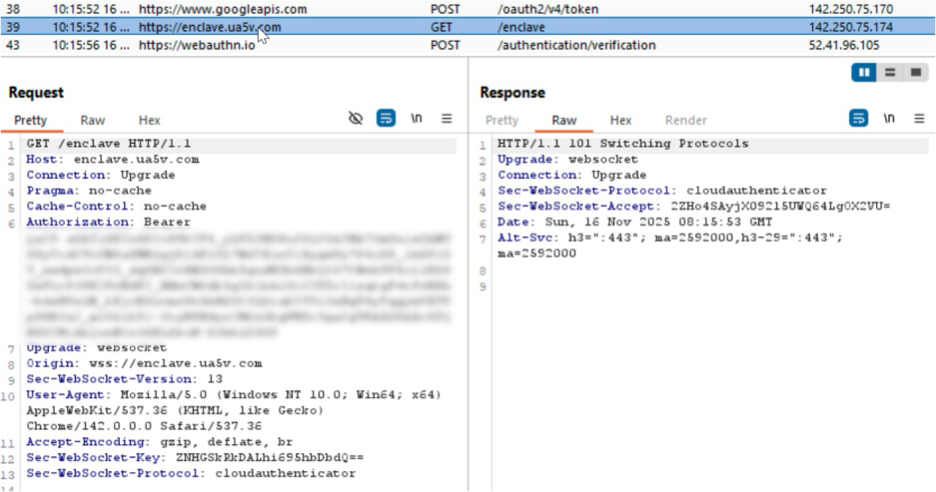
Once the token is obtained, Chrome opens a WebSocket connection to the cloud authenticator. See Figure 11, wss[:]//enclave.ua5v[.]com/enclave.
The cloud authenticator returns a WebSocket upgrade response (101 Switching Protocols), and Chrome proceeds to the Noise-NK handshake.
Noise Handshake
Chrome and the cloud authenticator establish an encrypted session using the Noise Protocol Framework. Noise is a framework for flexible cryptographic handshakes that specifies a protocol for two parties to exchange Diffie-Hellman (DH) public keys. It then hashes the DH results into a shared secret and derives symmetric keys to protect all subsequent messages.
Chrome uses the following handshake variant: Noise_NK_P256_AESGCM_SHA256.
This combination defines:
- NK: the handshake pattern
- N: the initiator (Chrome client) is unauthenticated
- K: the responder (cloud authenticator) has a known static public key (the key is hard-coded in Chrome)
- P256: DH uses the NIST P-256 elliptic curve.
- AESGCM: encryption uses AES-GCM.
- SHA256: hashing uses SHA256.
The session begins in an initial handshake state, where both sides prepare to exchange ephemeral keys and progressively mix cryptographic material into the handshake hash state and shared encryption key.
Message A: Chrome (e, es) to Cloud Authenticator
Chrome sends the first handshake message, which includes its ephemeral public key and the result of an Elliptic Curve Diffie-Hellman (ECDH) operation with the cloud authenticator’s static public key.
Message B: Cloud Authenticator (e, ee) to Chrome
The cloud authenticator responds with its own ephemeral public key and performs a second ECDH operation using Chrome’s ephemeral key. To this message, the cloud authenticator also attaches an attestation signature for its Oak execution environment, intended to allow the client to verify that it is communicating with a trusted authenticator. We did not observe where, or if, Chrome validates this attestation.
After the handshake messages are exchanged, Chrome and the cloud authenticator share a symmetric transport key and a handshake hash. Chrome can then send requests over the secure tunnel, each signed with a device key bound to the handshake.
Device Key Signature
The device-to-cloud request is signed with one of the device’s hardware-backed keys. (The only exception is the initial onboarding message, which carries the device public keys.)
For each request, Chrome determines which device key to use based on the context. When WebAuthn’s user verification is required or preferred, Chrome signs the request with the UV key, prompting the local user to verify before signing. When user verification is discouraged, Chrome uses the identity key instead.
To bind each request to the active Noise session, Chrome creates a signature over both a serialized Concise Binary Object Representation (CBOR)-encoded request and the handshake hash. The signature not only proves the device's hardware identity and the integrity of the requested message, but also binds it to the current encrypted session.
Below is an example using a passkeys/assert request. (Other device-to-cloud authenticator requests follow a similar structure, with the request fields changed.)
requests = {
"cmd": "passkeys/assert",
"request": {rpId, challenge, userVerification,..,}
"protobuf": WebauthnCredentialSpecifics,
"wrapped_secret": wrapped_secret,
"client_data_json": clientDataJSON
}
serialized_requests = CBOR.encode([requests])
serialized_requests_hash = sha256(serialized_requests)
to_sign_message = handshake_hash || serialized_requests_hash
Using Windows TPM-Backed Keys for the Signature
For the identity key, Chrome signs the message using the Windows Cryptography Next Generation (CNG) APIs:
- NCryptOpenStorageProvider: Opens the MS_PLATFORM_CRYPTO_PROVIDER
- NCryptImportKey: Imports and unseals the wrapped_identity_private_key within the TPM
- NCryptSignHash: produces the signature on the message using the imported key
When Chrome needs to sign with the UV key, it calls RequestSignAsync using the UV key label loaded from the passkey_enclave_state file. Windows Hello handles the user verification step, and after approval, Windows performs the actual signing inside the TPM and returns the resulting signature.
Encrypting and Sending the Signed Request
With the signature ready, Chrome appends it to the request, encrypts it with the shared transport key and sends it over the WebSocket tunnel.
request_body_map = {
"sig": signature,
"device_id": device_id,
"auth_level": "uv", // or "hw" tag if signed with identity key
"encoded_requests": serialized_requests
}
encode_message = CBOR.encode(request_body_map)
// Make the final message length a multiple of 32 bytes
message = encode_message || zero padding || pad_length_byte
encypted_massage = noise.encrypt(message)
websocket.send(encypted_message)
The cloud authenticator decrypts the message using the shared transport key and verifies the signature using the stored device public key associated with the device_id. After processing the request, it prepares a CBOR-encoded response and encrypts it with the same transport key, and then sends it back to the client.
Conclusion
Google Cloud Authenticator marks a fundamental shift in how passkeys are created, protected and used across devices. Passwordless authentication has traditionally followed two distinct paths:
- Hardware-bound keys, which offer strong protection but are locked to a single device
- Software-based keys, which sync easily but are far more vulnerable to theft
The cloud authenticator introduces a new hybrid model. Sensitive key operations are moved to an isolated cloud environment. Every request remains anchored to hardware-backed keys on the user’s device. This approach allegedly preserves hardware-level assurances while enabling the global usability needed for seamless, synchronized cross-device authentication and recovery.
This analysis lays the groundwork for highlighting the strengths of cloud-based authenticators.
It sets the stage for an upcoming third post, where we’ll explore the new attack vectors in passwordless authentication. This includes cloud-based weaknesses that could allow a remote attacker to impersonate an existing synced device and obtain valid passkey authentication.
Palo Alto Networks Protection and Mitigation
Palo Alto Networks customers are better protected from threats that take advantage of issues with cloud authentication through the following products and services:
Cortex Cloud Identity Security encompasses Cloud Infrastructure Entitlement Management (CIEM), Identity Security Posture Management (ISPM), Data Access Governance (DAG) and Identity Threat Detection and Response (ITDR). It provides clients with the necessary capabilities to improve their identity-related security requirements. By providing Cortex Cloud visibility into which identities are adding devices or altering their permissions within cloud environments, Cortex Cloud can accurately detect misconfigurations, unwanted access to sensitive data and real-time analysis surrounding usage and access patterns.
CyberArk Identity Protection continuously maps authentication configurations and access posture across your human identity environment. It surfaces risks that passwordless deployments can obscure: accounts missing phishing-resistant MFA, misconfigured OAuth token lifetimes, dormant identities with persistent access, and privilege gaps lacking just-in-time controls. Its threat detection capabilities monitor for anomalous authentication patterns and suspicious access behaviors in real time. This enables security teams to identify and respond to identity-based attacks before they escalate, including cases where the initial access vector exploits trusted authentication flows like passkeys or synced credentials.
Unit 42 Cloud Security Assessment is an evaluation service that reviews cloud infrastructure to identify misconfigurations and security gaps.
If you think you may have been compromised or have an urgent matter, get in touch with the Unit 42 Incident Response team or call:
- North America: Toll Free: +1 (866) 486-4842 (866.4.UNIT42)
- UK: +44.20.3743.3660
- Europe and Middle East: +31.20.299.3130
- Asia: +65.6983.8730
- Japan: +81.50.1790.0200
- Australia: +61.2.4062.7950
- India: 000 800 050 45107
- South Korea: +82.080.467.8774
Palo Alto Networks has shared these findings with our fellow Cyber Threat Alliance (CTA) members. CTA members use this intelligence to rapidly deploy protections to their customers and to systematically disrupt malicious cyber actors. Learn more about the Cyber Threat Alliance.
Additional Resources
Table of Contents
Related Cloud Cybersecurity Research Resources

 Threat Research









 Get updates from Unit 42